Introduction
CheckLift is a digital, web-based forklift checklist used to perform OSHA-required daily preflight checks on commercial lift trucks.
Starting CheckLift
To open the Checklift app, navigate your browser to:
http://webservices.carolinacontainer.com/cliff/liftlog/
Using CheckLift
User Login
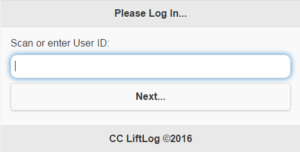
The first screen will ask for your user ID. A barcode should have been provided to you by your manager. You can scan this barcode, or manually key in your user ID. After your user ID is entered in the input field, click ‘Next’.
New User Info
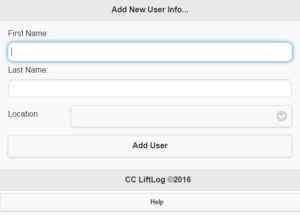
If your user information has not yet been entered, you will be asked for your first and last name, and your location. If prompted, please enter this information and click ‘Next’.
Select Forklift
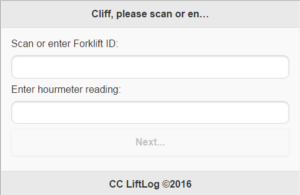
The next screen will ask for the forklift ID. The forklift ID is different than the forklift name, and can be scanned from a barcode, also. This barcode should be affixed to the lift in a prominent location so that drivers from any shift can easily locate it. Again, the forklift ID can be manually keyed in if necessary. The current hourmeter reading from the lift must also be entered. After this information is entered into the input fields, click ‘Next’.
New Forklift Info
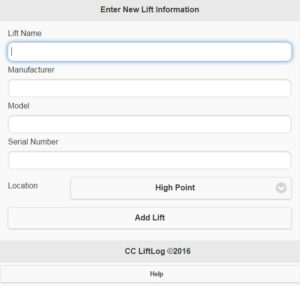
If the forklift information has not yet been entered, the system will prompt for the name, make, model, and serial number of the lift. For instance:
- Name: HP34
- Make: Toyota
- Model: GTZ-30
- Serial Number: TY114589ER9012
Once this information is entered, it will be stored in the database and pulled up automatically. Click ‘Next’.
Forklift Checklist
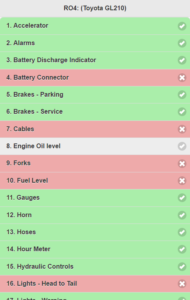
The checklist page will open, with the name, make, and model at the top of the screen. Checklist items with open issues will appear in red. Items that have no issues will appear in green.
Display Existing Issues
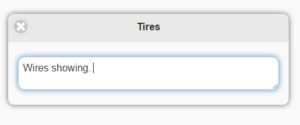
To view existing issues, swipe left on any red item. A text box will open, listing all open issues related to that item. You may close the box with the browser’s ‘back’ button, or by clicking or tapping the ‘X’ in the upper left corner of the box.
Add New Issue
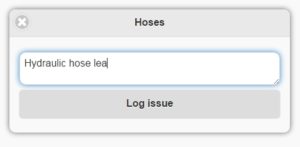
To add an issue, tap or click any item. A dialog box will open, allowing you to add an issue.
If you are adding an issue to an item that already has issues (and is shown in red), it is recommended that you tap and hold the item first to review the existing issues. This will help prevent adding issues twice.
Submit Checklist
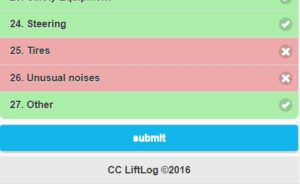
Once you have added any new issues to the checklist, scroll or swipe to the bottom of the screen, where you’ll see a blue ‘Submit’ button. Click this button to submit your daily checklist.
Complete!
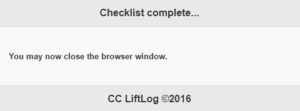
Once the screen appears that says “Checklist complete”, you may close the browser window. No further action is required.